Survey responses are displayed in a purpose built People View dashboard. Go to Dashboards > People View to open the dashboard.
If you do not see People View as a dashboard display option then it needs to activated in your user accessibility settings.
Turn on MM_VIS_DASHBOARDS_PEOPLEVIEW in the Dashboards visibility options.
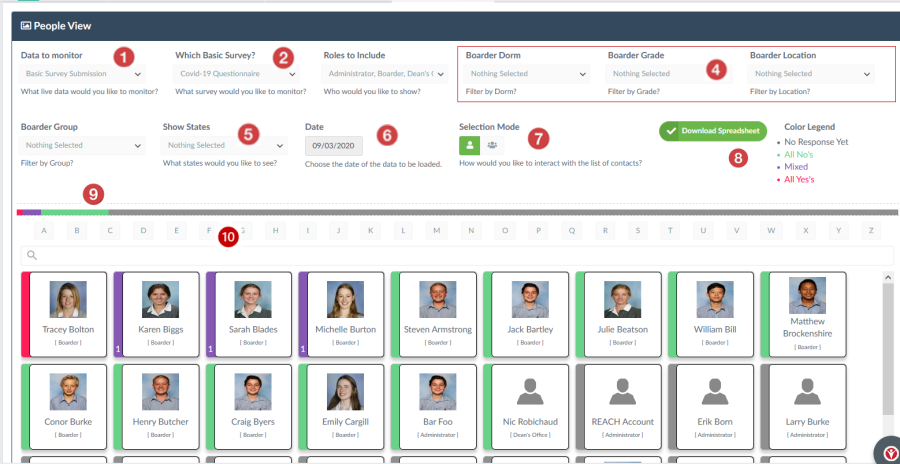
|
|
Data to monitor |
Select the Basic Survey Questionaire. |
|
|
Which Survey? |
Select the name of your Survey to view. |
|
|
Roles to include |
Which Roles to display (Students & Staff roles) |
|
|
Filters |
Filter your students using common student filtering options |
|
|
Show States |
Show the response state (All Yes, All No, Mixed answer) |
|
|
Date |
Date of survey records you want to display |
|
|
Selection Mode |
Individual or bulk selector mode |
|
|
Download |
Downloads screen results to spreadsheet |
|
|
Status metrics bar |
The population status is displayed as a `100% horizontal bar |
|
|
Search |
Use the search bar or Alpha quick select options to find an individual rapidly |


Colour coded response status
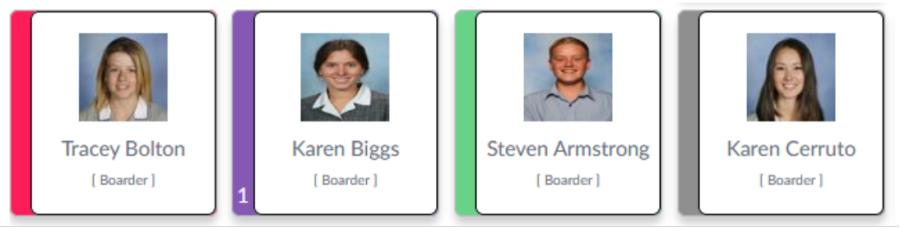
Colours on the cards correspond to the responses that the users have submitted.
|
|
All YES |
Respondent answered YES to all questions |
|
|
Mixed response |
Respondent answered YES to some questions.The number of Yes responses is identified by the number in the sidebar |
|
|
All NO |
Respondent answered NO to all questions |
|
|
No Response |
No responses submitted. |




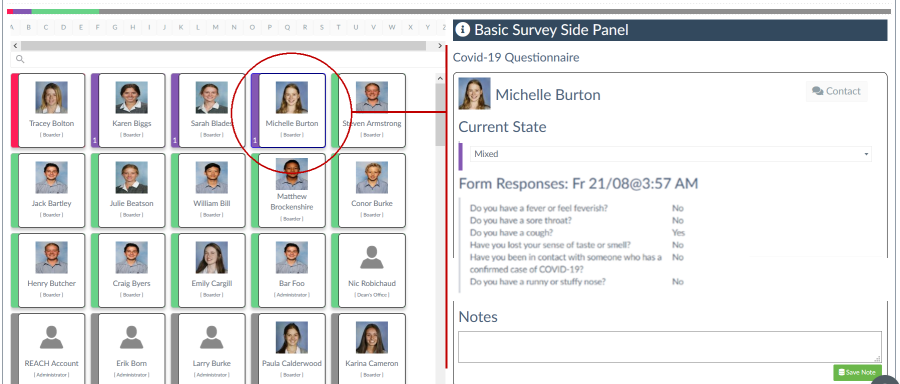
Click profile image to expand contact's view
Clicking on any user's card in the People View dashboard will open the details of their response for the relevant survey. From this view there are a number of actions that can be taken whilst looking at their detail view
-
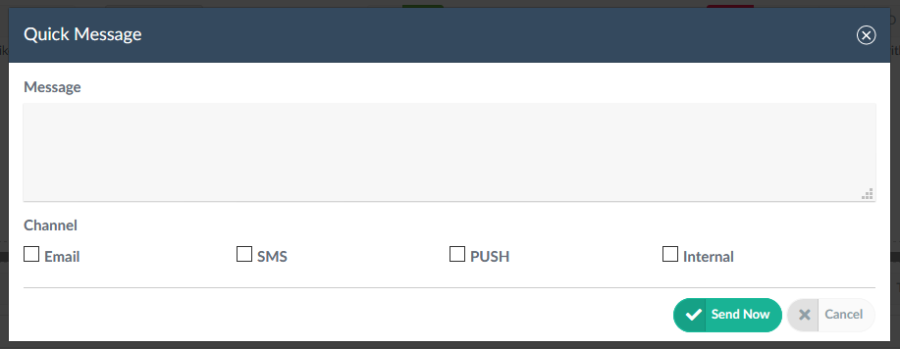
Send Message - send the person a message by email, SMS, Push notification or internal messaging.
-
Log notes - You can log notes associated with the responses or individual
-
Change State - change the colour of their card by changing their current State. It is important to note that this does not change their responses but allows nurses and administrators to process users that have been checked in person.
Bulk messaging contacts in your view
The Bulk Selector icon allows you to select multiple contacts for bulk messaging. Messaging is one directional alerts that can be sent to the selected contacts.

When switching the Selection Mode to Bulk a selection toggle and messaging options appears as part of your selection options.
From the filtered view that is currently showing on your screen you can bulk select any status of user based on their responses to your survey (All Yes, All No, Mixed response or No Response).
Once you have selected the group of contact that you want to message clicking on the Message icon will open up the Messaging dialogue where you can message the selected contact by Email, SMS, Push notification or Internal message.