Am I going to get a separate email for each user?
Yes, if you set up the questions to email someone on both a YES and NO response. You will only get one email per user. The email will condense all the responses that you were set to be notified of. If a question is missing, check that you were correctly set to be notified of that response.
How do I create an account that can ONLY respond to surveys?
-
Navigate to System Configuration > Infinity.
-
Create a new Base Security.
-
Click Permissions on the left and open the Dashboards settings.
-
Turn off all permissions except MM_VIS_HELP under the Help settings and MM_VIS_DASHBOARDS_METRICS under the Dashboards settings.
How do I prevent unauthorized staff from viewing the results of the survey?
-
Navigate to System Configuration > Infinity.
-
Select the Role you would like to modify.
-
Click Permissions on the left and open the Dashboards settings.
-
Turn off MM_VIS_DASHBOARDS_PEOPLEVIEW
Staff members can't see the Staff section in the sidebar of the mobile app. How do I enable it?
-
Navigate to System Configuration > Infinity.
-
Select the Role you would like to modify.
-
Click Permissions on the left and open the Staff settings
-
Turn on MM_VIS_STAFF
How do I send a reminder to complete the survey?

Toggle Bulk Selection Mode and select the users you would like to message. You can quickly select all users in a particular state by clicking a state in the Selection Toggle.
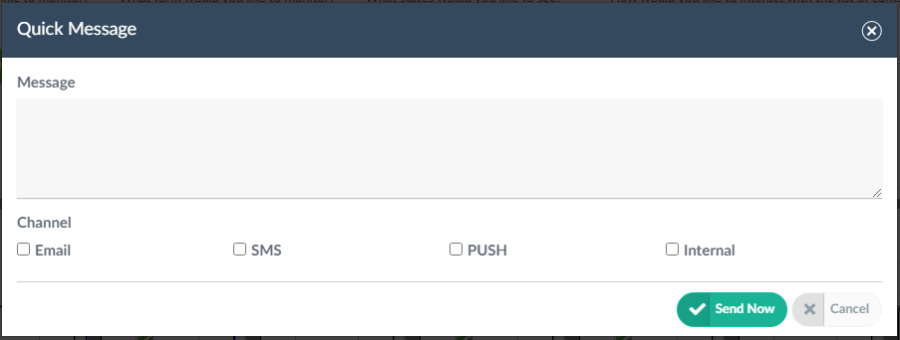
Click the Quick Message button and type the message you would like to send. You can choose the method with which to send the message:
-
Email: Send the user an email
-
SMS: Send the user a text message
-
PUSH: Send the user a push notification to their mobile device.
-
Internal: Use REACH's internal messaging system. *Deprecated*