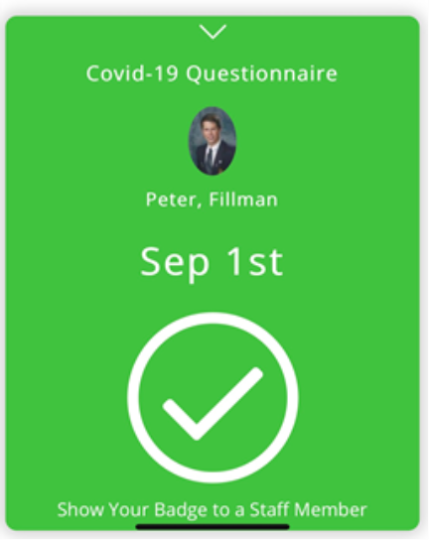
You can invite students, staff or parents to complete your survey questions and they can access the survey to submit their answers by logging in to REACH on either the web portal or mobile app.
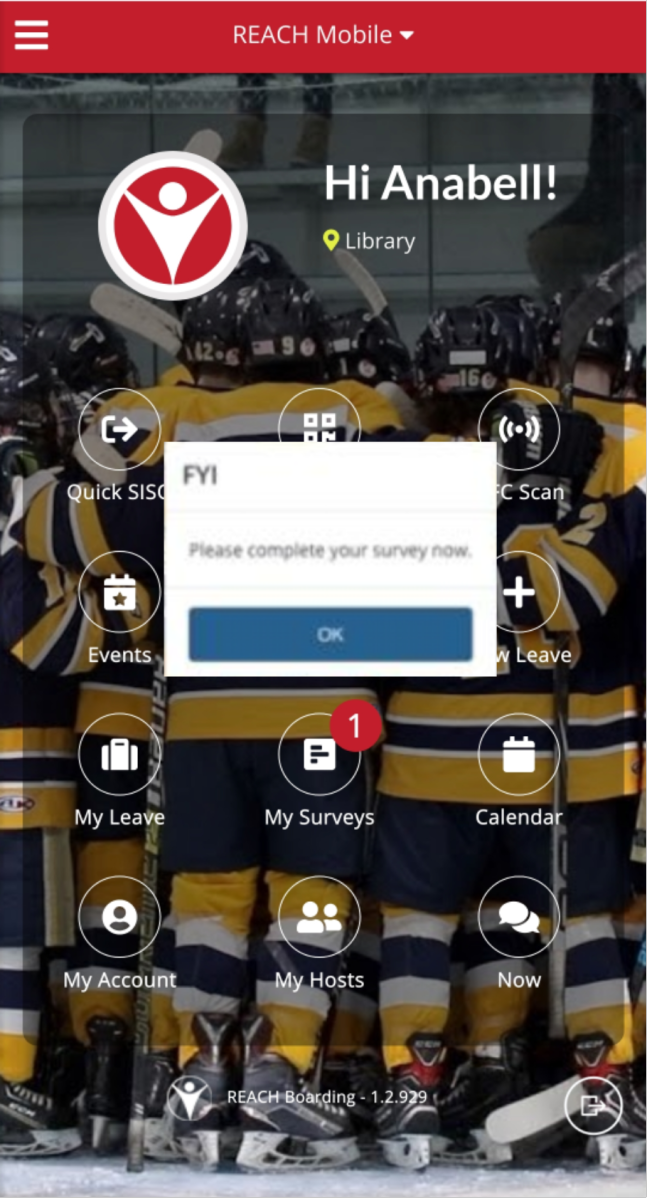
If there is a survey open for a response, you will see a pop-up notification when you first log into the REACH app.
Completing surveys on web portal
-
Log in to your school's REACH portal using hyour username and password.
-
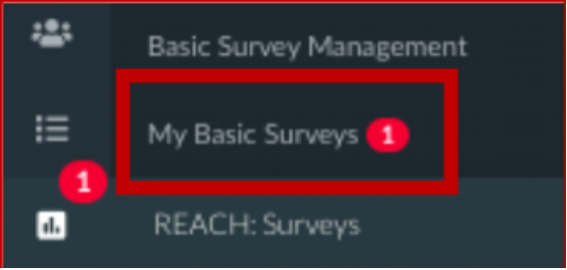
Access the Surveys menu item in the left side menu. The number being displayed represents the number of surveys that are available for you to complete
-
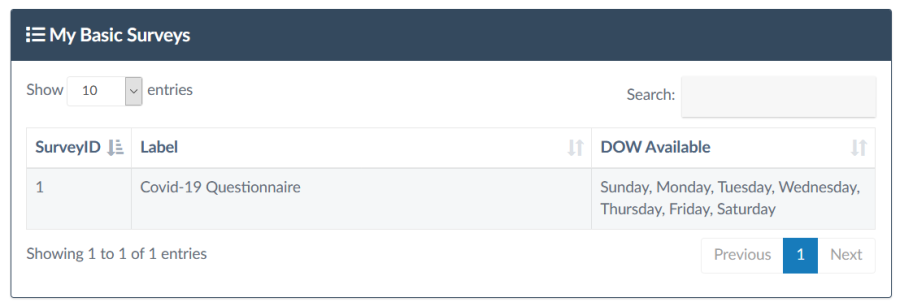
Select from the list of surveys that are available for to complete
-
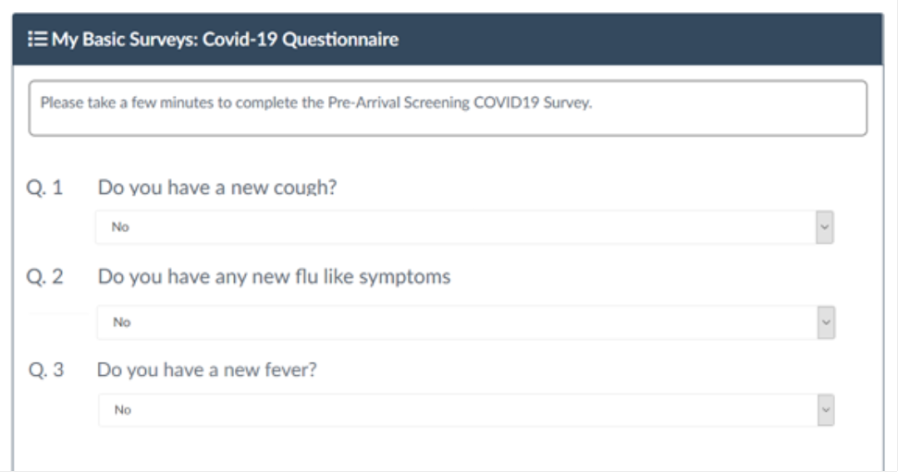
Open the survey that you wish to complete
Completing surveys on mobile app
Survey forms ready for completion are available for users when they log into the mobile app.
Access to Surveys for students and parents is via the My Surveys icon on their mobile app home screen.
|
Student / Parent View
|
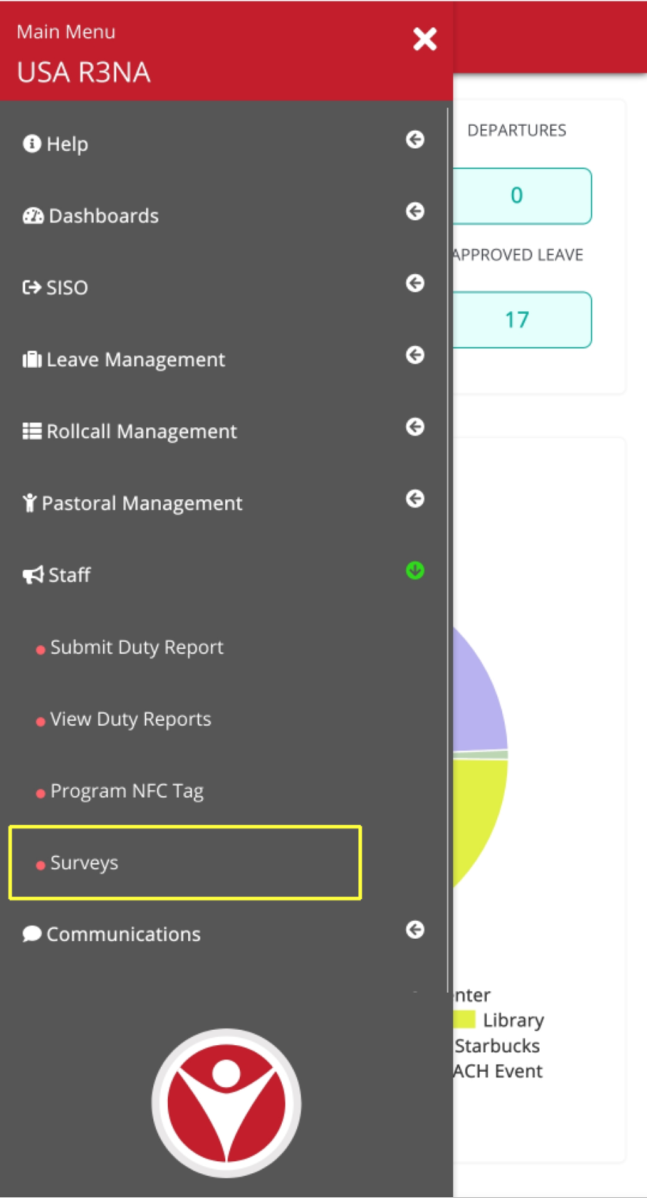
Staff View
|
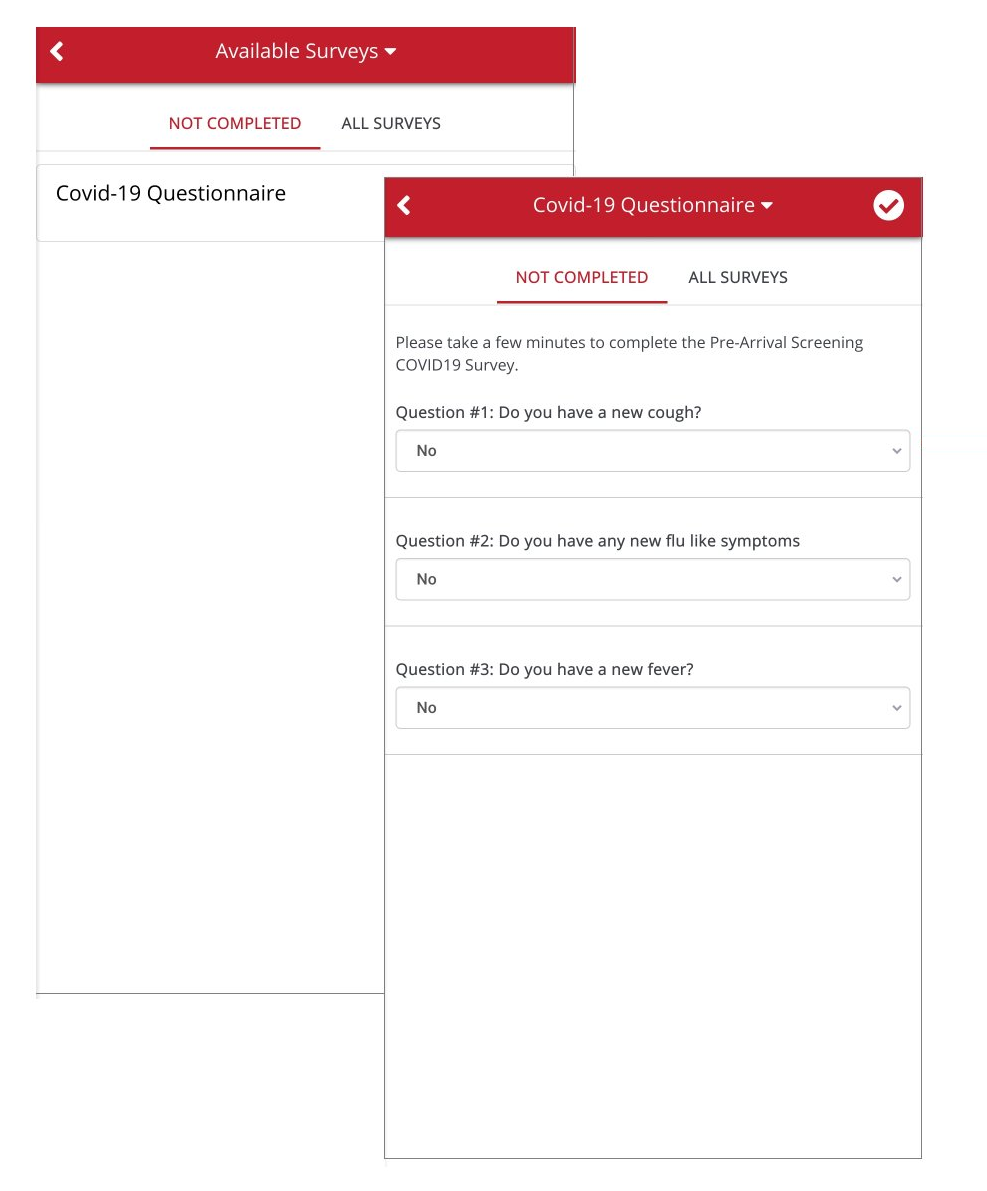
When selecting the Surveys option from the menu items available the app will display all of the surveys that are available for that user to complete. Selecting the relevant survey will open the survey questions for completion.
Users are provided with a daily status record on their phone app which can be used as a visual pass.