
Once a prescription medication is added to your Medications Register is becomes available for you to allocate the medicine to a student's profile for dispensing.
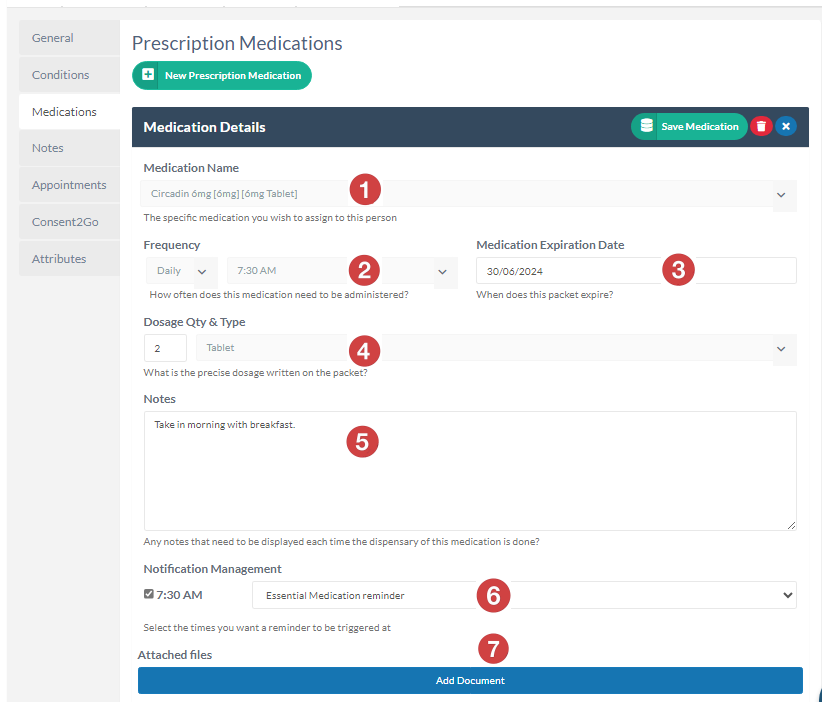
Clicking on the New Prescription Medication button in a student's profile allows you to enter their prescription details and allocate the relevant prescribed medicine from your medication register.
You are required to enter the following details
-
Select the Medication Name from your medications register
All PMO medications will be available for selection in the drop down selector. -
Set the Frequency and Time
See section 31.2.1.1 for more details on the options for setting frequency -
Set the Medication Expiration Date
This relates to this specific prescription. If the medication is ongoing and the prescription will be filled with repeats then set the graduation date of the student. -
Set the Dosage quantity and Type
Number of items and type of iitem (eg: 2 tablets) -
Write any relevant Notes to display to staff when adminiistering the medicine
These notes will display to the staff member who is administering the medication. Example note may be “To be taken with food” -
Determine if there is any alert profile assigned to the medicine
Alerts can be set to remind students to take their medications or to alert staff where medications are late or missed. See section 31.2.1.2 for more details on Medication Alerts -
Add any documents that relate to the medication
Any supporting documents can be loaded to support this medication allocation (eg: copy of prescription)
Scheduled medications
Once a medication is prescribed for a student in their medications profile then REACH will schedule the medication to the daily medications board in line with the frequency and time set for the prescription.
Setting the Medication Frequency
There are three options for medication frequency
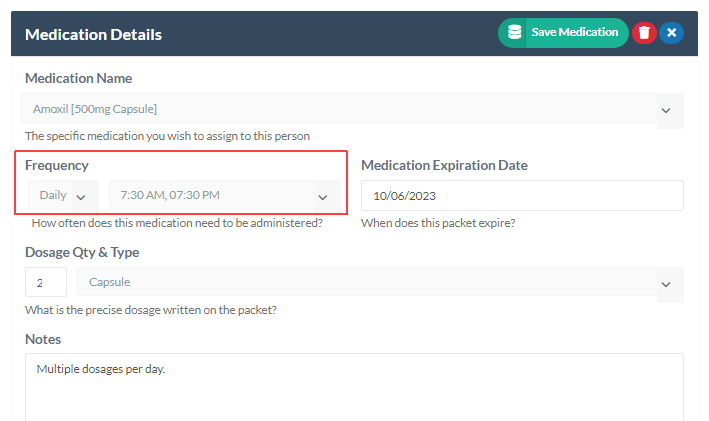
Daily Dosage medications
Select Daily and the relevant time. For medications that require multiple dosage per day you can set multiple times for a Daily frequency. Setting the frequency to daily and selecting multiple times for the day will schedule the medication for those times on the day.
As Required PMO Medications
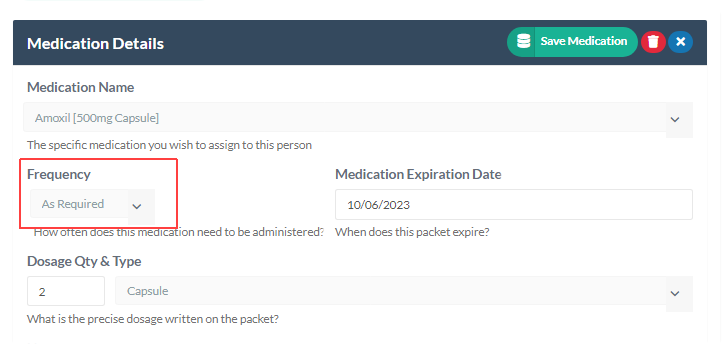
Sometimes prescription medications are to be taken as required by students. When this is the case select the As Required option in the Frequency selector. When As Required is selected the medication will not appear on the Daily Medications Board. It will instead be available in the student’s profile in the As Required medications list similar to OTC medications.
Scheduled Pattern medications
For medications where the frequency is not every day you can use one of the Reach Frequency Pattern creators.
Reach provides four (4) pattern creation methods that allow for a large variation of pattern structures to be created. These pattern structures are
-
Simple patterns - Basic recurring patterns by day, week or month
-
Custom patterns - Set custom dates in a calendar (non-recurring)
-
Daily patterns - Custom recurring patterns over any day range
-
Week of Month patterns - Custom recurring patterns over any week of month profile
Medication Frequency Patterns are explained more detail here.